Feature capability map
Every remote-control action XimosKid supports, exactly what it does on the child device, and which billing bucket it draws from. This is the complete list of 13 shipped features — nothing here is simplified for marketing, and nothing is left out because it's less flattering.
| # | Feature | What it actually does | Billing |
|---|---|---|---|
| 1 | Screen mirroring + full remote touch | Live view of the child's screen with full click, swipe, and gesture control via the Accessibility Service — active only during a parent-initiated session, not limited to simple taps | Free seconds or balance |
| 2 | Camera casting (front/rear) | Live camera stream with mid-session flip, flashlight toggle, adaptive resolution (480p/720p/1080p), adaptive bitrate up to 3.5 Mbps, plus Smart Zoom & Smart Focus (see dedicated section below) | Free seconds or balance; min 400 free seconds (changeable) or any positive balance to start |
| 3 | Surrounding Audio Listening | Standalone one-way live ambient audio stream — see dedicated section below | Free seconds or balance; sessions > 60s receive a 10-second billing discount |
| 4 | Location tracking | Parent-triggered remote live location — see dedicated section below | Unlimited & free |
| 5 | Usage monitoring | Screen time totals, per-app open count and duration, unlock count, battery, current time, Wi-Fi/mobile data usage — viewing & reporting only | Unlimited & free |
| 6 | Photo capture (2K) | Parent-requested snapshot, uploaded to the 30-day Cloud Media Vault | Unlimited & free (250MB vault cap) |
| 7 | Video record (2K) | Parent-requested clip, uploaded to the 30-day Cloud Media Vault | Unlimited & free (250MB vault cap) |
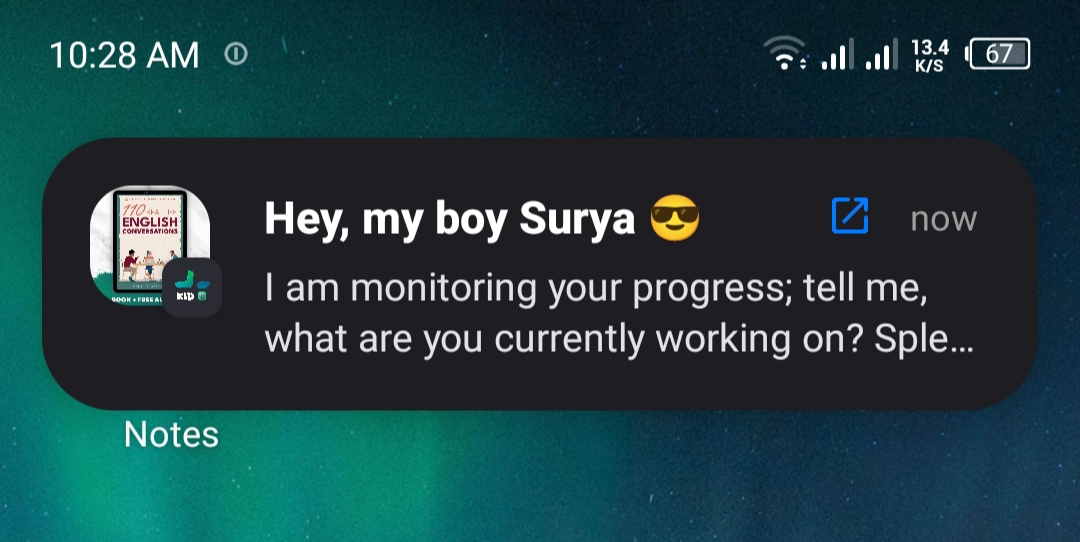
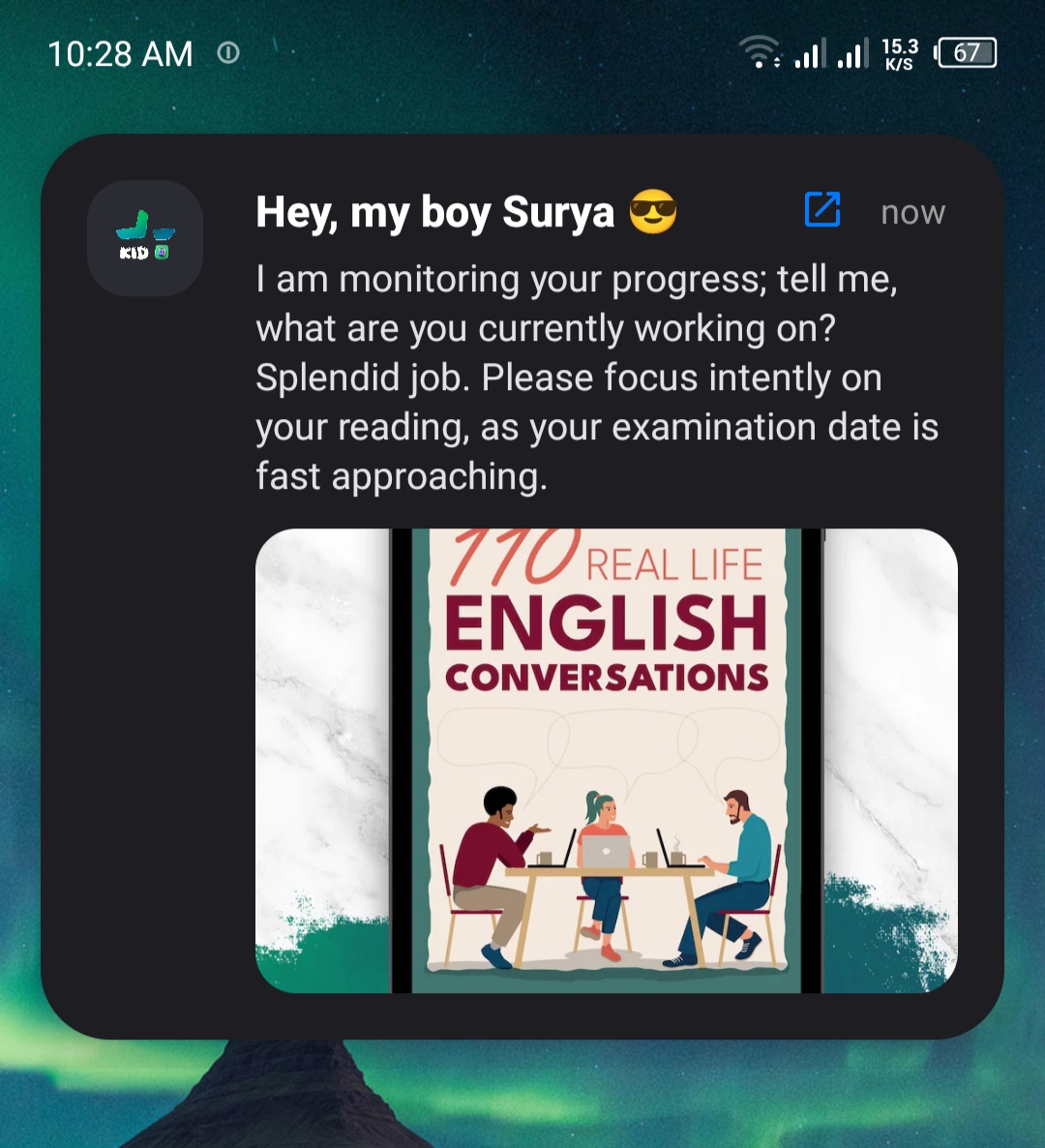
| 8 | Notification Send | Custom text notification delivered to the child's notification shade | Unlimited & free |
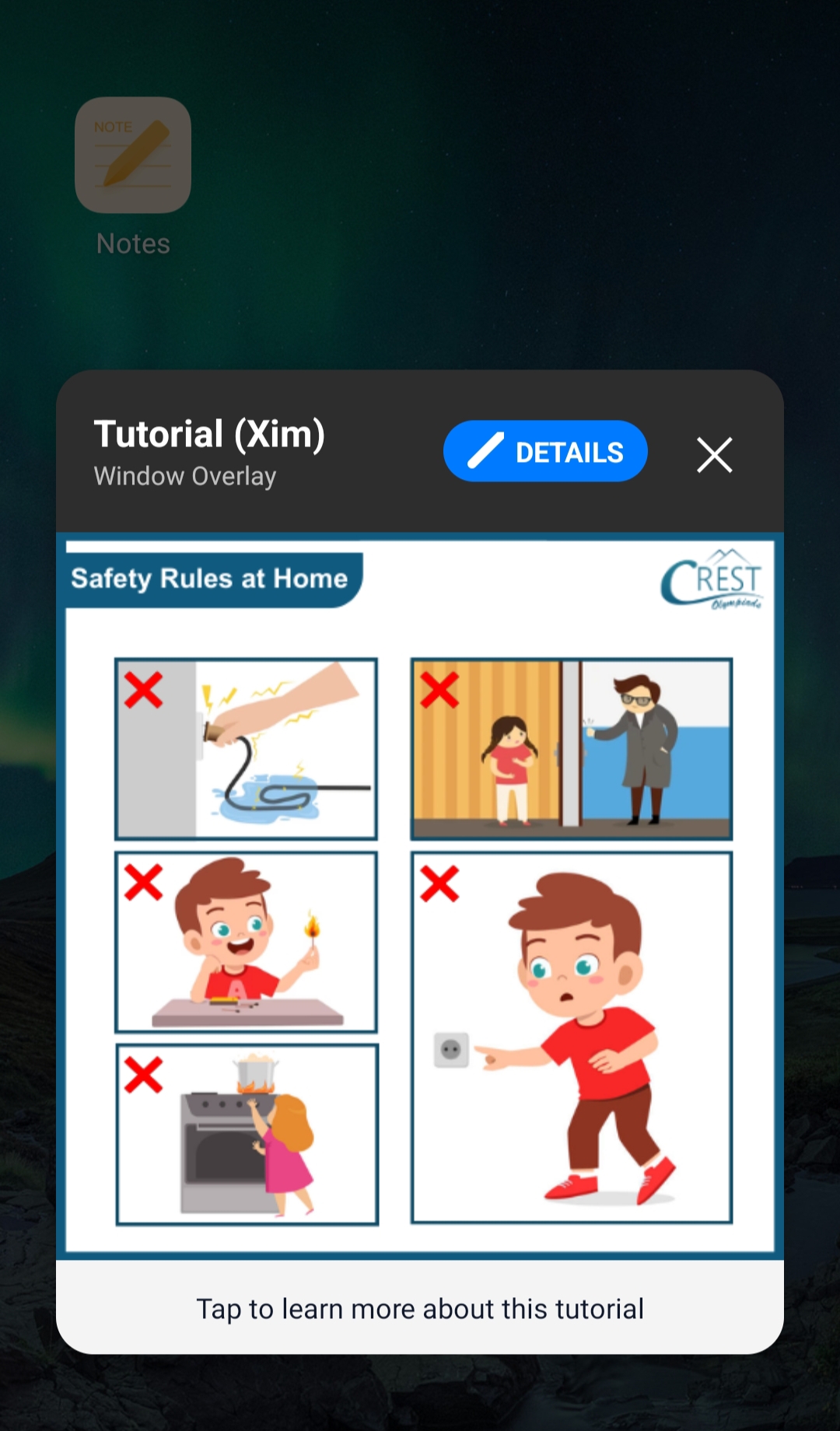
| 9 | Smart Alert Window | Full-screen popup dialog on the child's device with a custom image and instructions, shown until dismissed | Unlimited & free |
| 10 | OnScreen Notify | Custom overlay notification (text + optional image) delivered on top of the child's active screen | Unlimited & free |
| 11 | Clipboard Send | Pushes text or an image directly into the child device's clipboard, ready to paste | Unlimited & free |
| 12 | Open App | Launches a specific app on the child's device by package name | Unlimited & free |
| 13 | Action Command URL | Opens a specific URL or action command in Chrome on the child's device | Unlimited & free |
Camera cast — Smart Zoom & Smart Focus
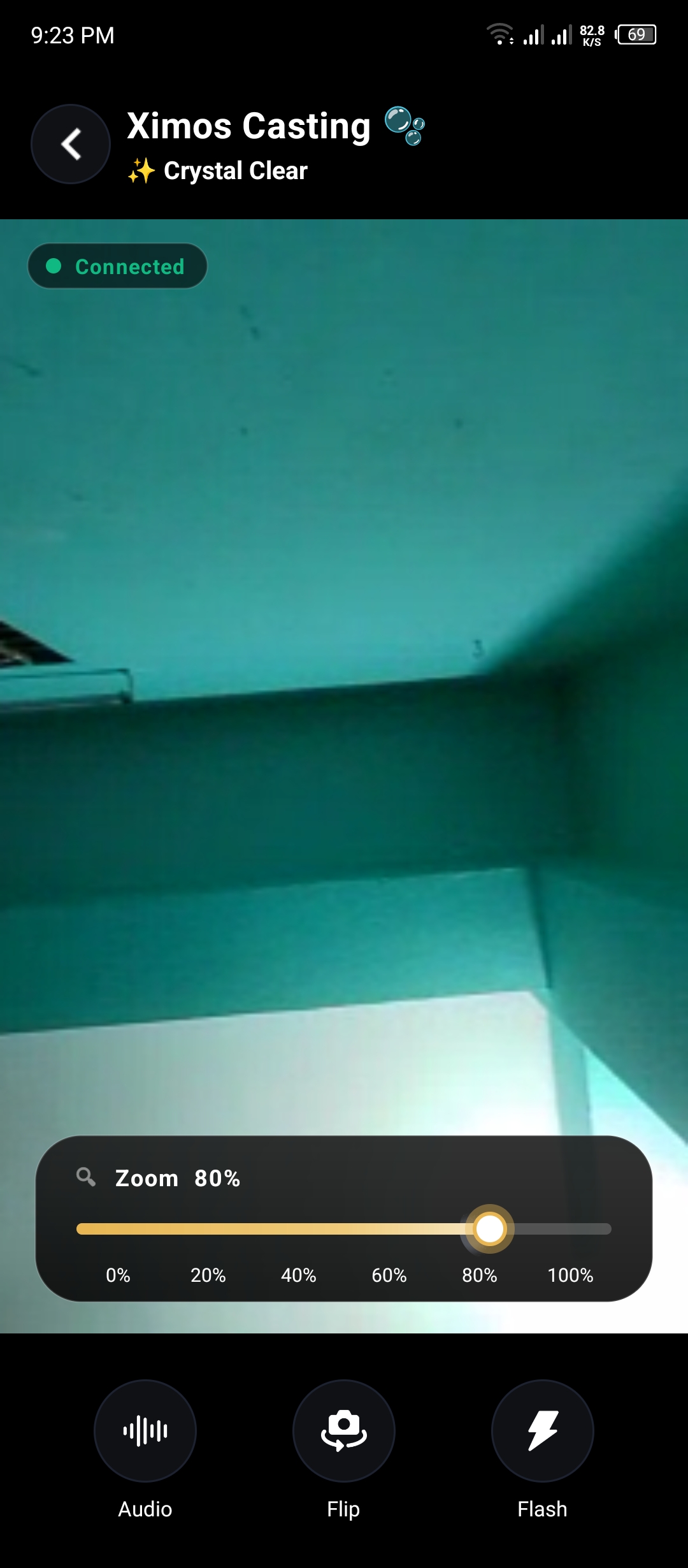
Camera casting is more than a passthrough video feed. The parent viewer gets two interactive camera controls — Smart Zoom and Smart Focus — that both read the actual camera capability of the child device rather than assuming a fixed limit.
Smart Zoom system
- • 6-step percentage slider — 0%, 20%, 40%, 60%, 80%, 100%. Designed for intuitive use on any device.
- • Per-device capability detection — the parent app reads CONTROL_ZOOM_RATIO_RANGE and SCALER_AVAILABLE_MAX_DIGITAL_ZOOM at runtime instead of hardcoding a max, so each phone's actual zoom range is honored.
- • Exponential mapping — matches human perception of zoom. A 20% step is a natural increment, not a jarring jump.
- • Dual-API support — Android 11+ uses CONTROL_ZOOM_RATIO (hardware zoom). Android 10 and below uses SCALER_CROP_REGION (digital crop). Both paths are handled transparently.
- • Auto re-detect on camera flip — front and rear cameras may have different max zoom, so the capability is re-read when the parent flips cameras mid-session.
- • 1.5-second capability cache — smooth performance without sacrificing accuracy. A zoomAck message tells the viewer when zoom was clamped to the device max.
Smart Focus system
- • Tap-to-focus — tapping anywhere on the video focuses on that exact point on the child device. Orientation-aware (sensor 90°/270° handled), with a proportional focus box sized to the sensor (minimum 60px).
- • Soft focus lock — long-press triggers a lock that freezes autofocus at the current converged position. The UI shows honest labels: 🔒 LOCKED for a real hardware lock, 🔓 HOLD for a soft lock.
- • Auto-unlock on next tap — no stuck-focus states.
- • Graceful fallback — devices with fixed-focus cameras skip lock entirely rather than showing a broken control.
- • Capability detection — CONTROL_AF_AVAILABLE_MODES, CONTROL_MAX_REGIONS_AF, and AF trigger support are all pushed to the viewer when the channel opens.
WebRTC Data Channel — low-latency commands
All interactive camera commands — zoom, focus, focus lock/unlock, reset, capability queries — travel over a P2P WebRTC data channel named control rather than through Firebase. Latency is 50–150 ms vs. Firebase's 300–500 ms, which makes the whole experience feel native. Delivery is ordered and reliable, and the protocol is JSON-based and bidirectional so it can be extended without breaking changes.
Surrounding Audio Listening — internals
Surrounding Audio is a standalone one-way live audio streaming feature — it is not the two-way audio that travels inside the Camera Cast stream. It runs on its own WebRTC media channel and can be started independently of any camera or screen session. It turns the kid device into a remote microphone the parent can listen through.
Transport & codec
- • Channel type: WebRTC media channel, not a voice call
- • Sample rate: 48 kHz full-band
- • Codec: Opus, adaptive bitrate
- • Latency: ~100–200 ms end-to-end
- • Routing: STREAM_MUSIC on both sides — bypasses voice-call DSP for clean playback
5-tier adaptive bitrate
| Tier | Network condition | Bitrate | ptime |
|---|---|---|---|
| HIGH | Loss < 1%, RTT < 150 ms, jitter < 60 ms | 96 kbps | 10 ms |
| MEDIUM | Loss < 4%, RTT < 300 ms | 72 kbps | 20 ms |
| LOW | Loss < 10%, RTT < 600 ms | 48 kbps | 20 ms |
| VERY_LOW | Loss < 20%, RTT < 1200 ms | 28 kbps | 40 ms |
| FLOOR | Very poor network | 8 kbps | 40 ms |
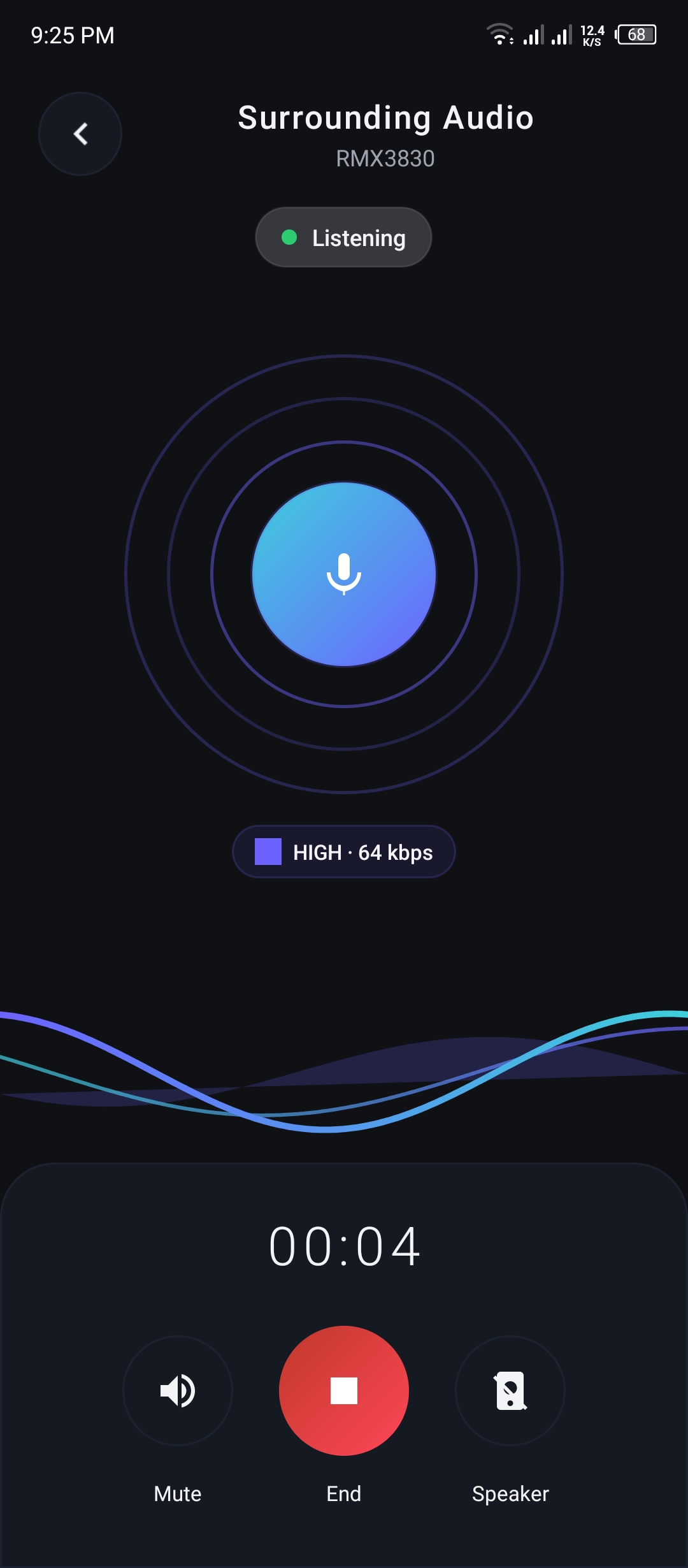
Quality is re-evaluated every 2 seconds and the badge in the UI updates live — for example, "HIGH · 64 kbps" → "MEDIUM · 32 kbps".
Audio pipeline
Capture side (kid device)
- • Noise suppression — OFF (capture everything around)
- • Echo cancellation — ON (software)
- • High-pass filter — OFF (retains room tone)
- • Auto gain control — ON (quiet sounds audible)
- • Stereo input — OFF (mono, lower bitrate)
- • Audio usage — USAGE_MEDIA
Playback side (parent device)
- • Audio mode — MODE_NORMAL
- • Stream type — STREAM_MUSIC
- • Volume keys control media (🎵 not ☎️)
- • Low-latency playback — ON
- • Hardware AEC — OFF (software AEC used instead)
Session behavior & user controls
- • One-tap start; live status chip — Connecting → Listening → Reconnecting
- • Session timer in MM:SS; heartbeat every 10 seconds; automatic ICE restart within ~3 s on disconnect
- • Remote stop from the listener side; billing auto-charged per second
- • Mute toggle — remoteAudioTrack.setEnabled(false); stream continues, playback silences
- • Volume Boost toggle — non-destructive, sets 85% of max, saves the previous volume, restores on untoggle
- • Earbud / Bluetooth auto-routing — routes to wired or BT headset when connected; re-routes on plug/unplug; prioritizes external devices over speaker; requests audio focus to pause other apps during the session
UI
Three concentric pulse rings around the mic icon (2000–2800 ms cycles, escalating opacity). A live PCM-driven waveform (triple-layer sine, Violet → Cyan gradient) with fast attack (0.40x) and slow release (0.06x) so it reacts to real audio energy rather than a canned animation. Quality badge (e.g., "HIGH · 64 kbps") updates live. Auto-responsive layout from small phones through tablets.
Location Tracking — internals
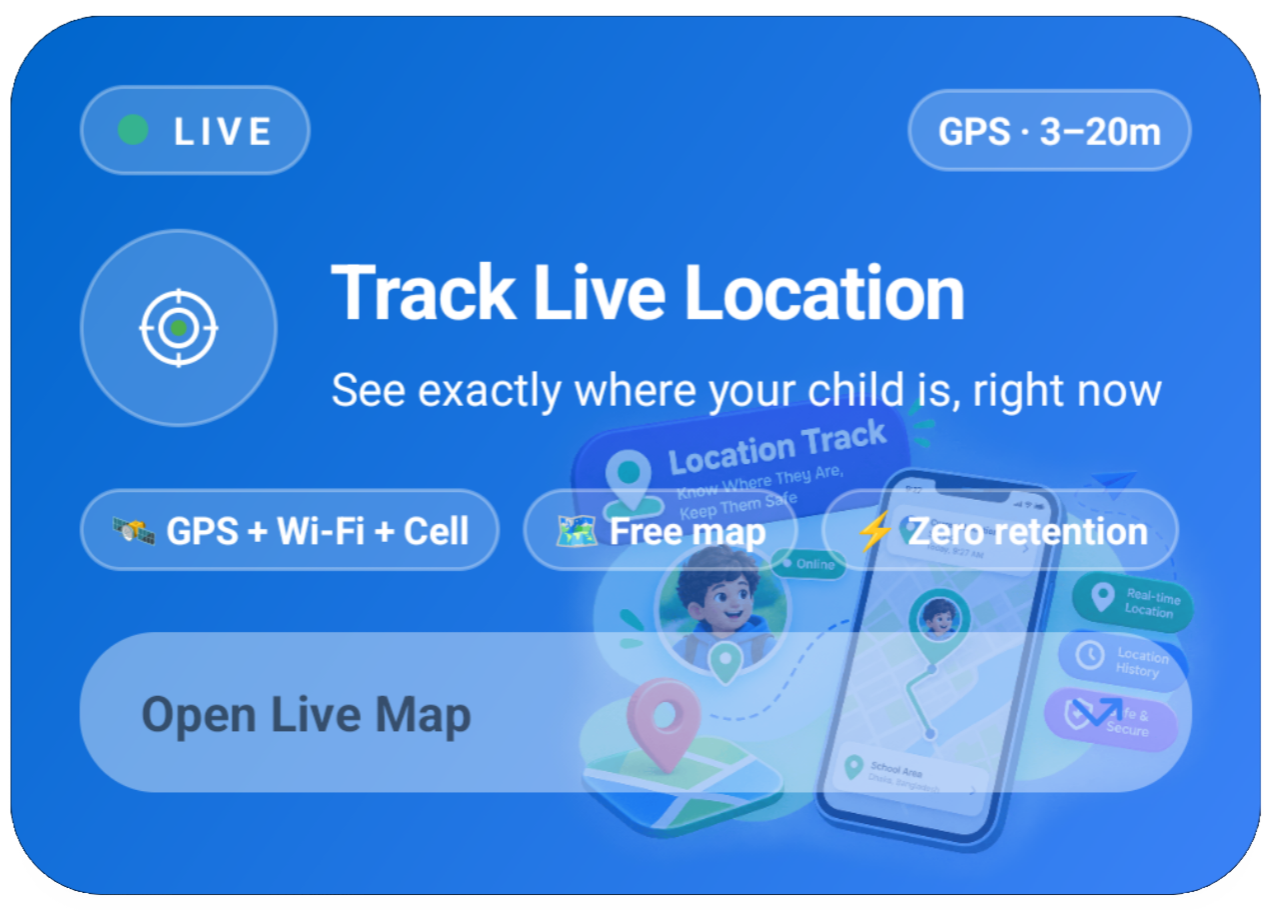
Remote live location tracking, parent-triggered only. When the parent taps refresh in the Ximos app or web dashboard, the kid device enters a multi-stage location flow. There is no continuous background collection — location is fetched only on parent trigger.
GPS auto-enable via Accessibility Service
If GPS is off, the child device shows the standard Android location-enable dialog. The XimosKid Accessibility Service auto-clicks the accept button using a three-layer strategy:
- Direct text match on the accessibility tree (fastest)
- Deep manual tree walk when text matching misses
- Heuristic fallback on the positive dialog button
Supported dialog texts include English ("Turn on", "Agree", "Allow"), Bengali ("চালু করুন", "অনুমতি দিন"), Hindi ("चालू करें", "अनुमति दें"), and other supported languages.
Multi-stage fetch
Two stages run in parallel so the parent gets an answer as fast as possible:
- • Stage 1 — last-known cached location uploaded immediately (may be slightly stale)
- • Stage 2 — fresh high-accuracy GPS fix requested in parallel
Both are sent to the server, which uses the freshest timestamp.
Fallback chain
If GPS is unavailable, the tracker degrades gracefully through multiple sources in priority order:
| Priority | Source | Typical accuracy |
|---|---|---|
| 1 | Fused GPS fresh | 3–20 m |
| 2 | Fused GPS cached | Varies |
| 3 | Network Provider (Wi-Fi BSSID + Cell tower via Google's database) | 20–100 m |
| 4 | Last-known from any enabled provider | Varies |
| 5 | IP-based geolocation (three sources tried in order: ipwho.is, freeipapi.com, ip-api.com) | 5–50 km — city-level only |
Each uploaded location is tagged with its provider and an isFallback boolean so the parent app can visually indicate how reliable the data is (accurate marker vs. approximate marker).
Delivery
Location data is relayed from the XimosKid device to the connected parent over the same encrypted Cloudflare Workers WebSocket used for stream signaling and usage data, using a Durable Object room keyed to uid + deviceKey for strict multi-tenant isolation. The parent app listens on a single WebSocket and distinguishes location payloads by type: "accurate_location". Location payloads are not retained server-side beyond the in-flight relay.
Parent app map
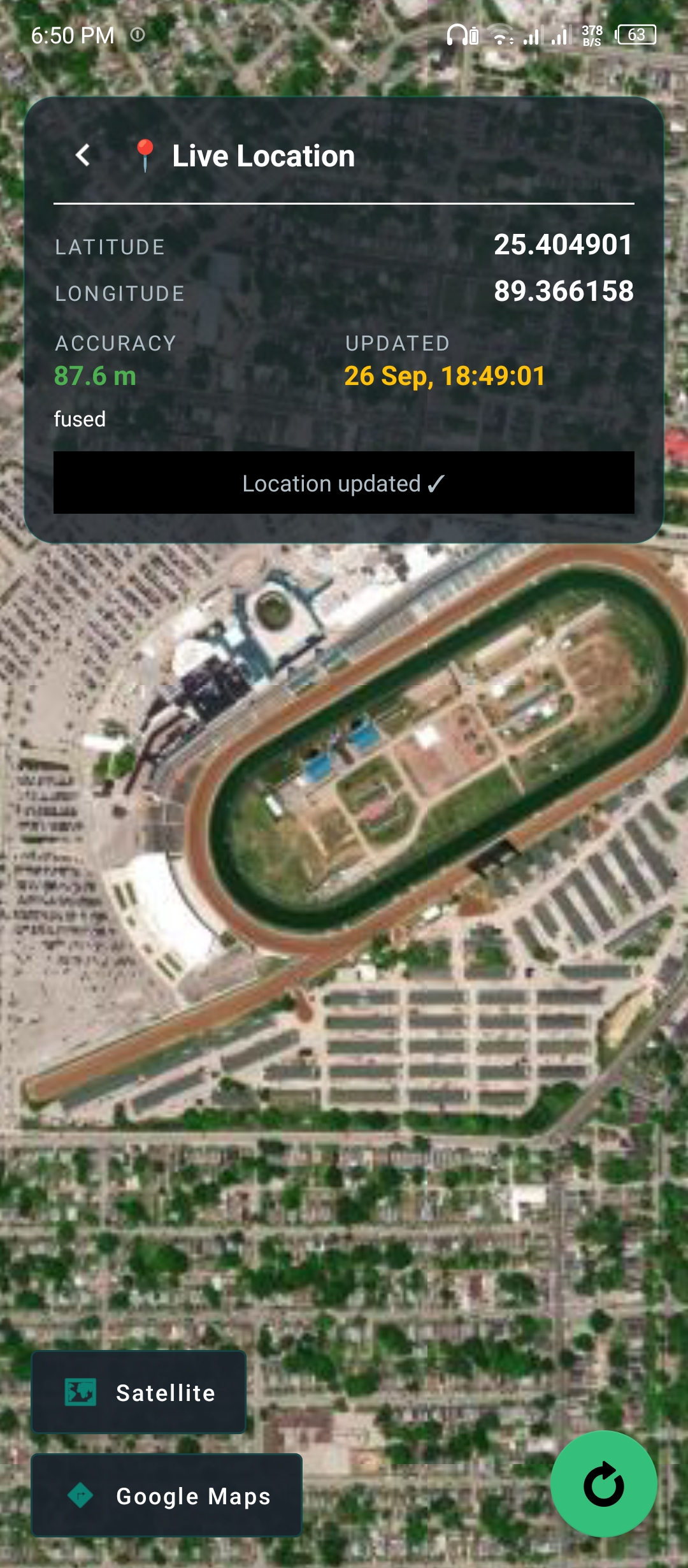
- • Free OpenStreetMap-based map with three switchable styles: Street (Esri World Street), Satellite (Esri World Imagery), OSM (classic OpenStreetMap)
- • No Google Maps API key required — the whole map stack is free
- • Overlay panel shows latitude, longitude, accuracy, provider, and last-update timestamp
- • Custom marker with a multi-line info window
- • One-tap "Open in Google Maps" button (falls back to the browser version if Google Maps isn't installed)
- • Most recent location cached in SharedPreferences so the map paints instantly on open and works offline
Trigger order
The parent app establishes the WebSocket connection first; only on onOpen does it write the get_location command to Firebase. This ensures the listener is already listening when the kid device uploads, so no broadcast is missed.
Usage monitoring, in full
The Usages Report screen in the parent dashboard shows exactly this, and nothing more:
- • Battery level and last-synced time
- • Today's Wi-Fi and mobile data usage (MB/KB), tracked separately
- • Weekly screen-time trend, by day
- • Per-app usage duration, most-used apps first
- • Weekly Wi-Fi vs. mobile data usage chart
- • Daily phone-unlock count, by day of week
- • Current device time (for time-zone-aware reporting)
- • No app blocking, time limits, or content filtering — see the note above

Permission request flow
Every dangerous permission goes through the same three-step gate before the Android system dialog even appears. This is the same flow for all sensitive permissions XimosKid requests.
1 · Disclosure shown
A custom dialog explains, in plain language, exactly what this permission does and why it's requested — before any system prompt.
2 · Forced read delay
The "Grant" button is disabled behind a 1-second countdown so the disclosure can't be tapped through blindly.
3 · System prompt
Only after that does Android's own permission dialog appear. Denying it at this point is always respected — no repeated re-prompting loop.
Disclosure text, per permission
This is the literal string shown to the user for each permission type, straight from BackgroundService.showPermissionDisclosure().
// exact disclosure copy shown before each system permission dialog
case TYPE_CAMERA:
  details = "• Camera Access: Enables parents to perform live camera streaming or capture environmental photos during active safety monitoring sessions to ensure child physical security.";

case TYPE_AUDIO:
  details = "• Microphone Access: Allows parents to listen to ambient audio during real-time emergency or monitoring sessions for immediate safety verification.";

case TYPE_OVERLAY:
  details = "• Display Over Other Apps: Allows the app to display critical parental alerts, screen time limits, and safety warnings directly over other active applications.";

case TYPE_BATTERY:
  details = "• Battery Optimization Exclusion: Keeps background safety services, real-time sync, and emergency
             alerts active continuously, even when the device enters sleep mode.";

case TYPE_ACCESSIBILITY:
  details = "• Accessibility Service: Used exclusively for parental control features to support remote device management,
            app restriction, and safety session execution. Ximos does NOT use this service to alter
            system settings without authorization or collect private personal data.";

case TYPE_STORAGE:
  details = "• Usage Access: Required to monitor app usage and track the child's behavior,
             including which apps are used and how much time is spent on them.";

case TYPE_INSTALL:
  details = "• Install Packages: Used strictly to update internal security modules and child safety components to the latest protected version.";

case TYPE_ADMIN:
  details = "• Device Admin Permission: Used to support parental control features by helping
             prevent children from removing the app without parental awareness. This
             ensures that app settings and protections remain active unless a parent
             explicitly allows changes. The app does not lock the device or erase any data.";


tvDetails.setText(details);
if (!isAvailable.equals("1p0p")) {
  new CountDownTimer(1000, 1000) {
    @Override
    public void onTick(long millis) {
      int sec = (int) (millis / 1000);
      btnGrant.setText("Grant (" + sec + ")");
      btnGrant.setEnabled(false);
      btnGrant.setAlpha(0.5f);
    }

    @Override
    public void onFinish() {
      btnGrant.setText("Grant Permission");
      btnGrant.setEnabled(true);
      btnGrant.setAlpha(1.0f);
      tvCountdownInfo.setText("Please review and proceed.");
    }
  }.start();
} else {
  btnGrant.setText("Grant Permission");
  btnGrant.setEnabled(true);
  btnGrant.setAlpha(1.0f);
  tvCountdownInfo.setText("Please review and proceed.");
}

btnDeny.setOnClickListener(v -> dialog.dismiss());

btn_unlock_settings.setOnClickListener(
  v -> openAppListSettings(this)
);
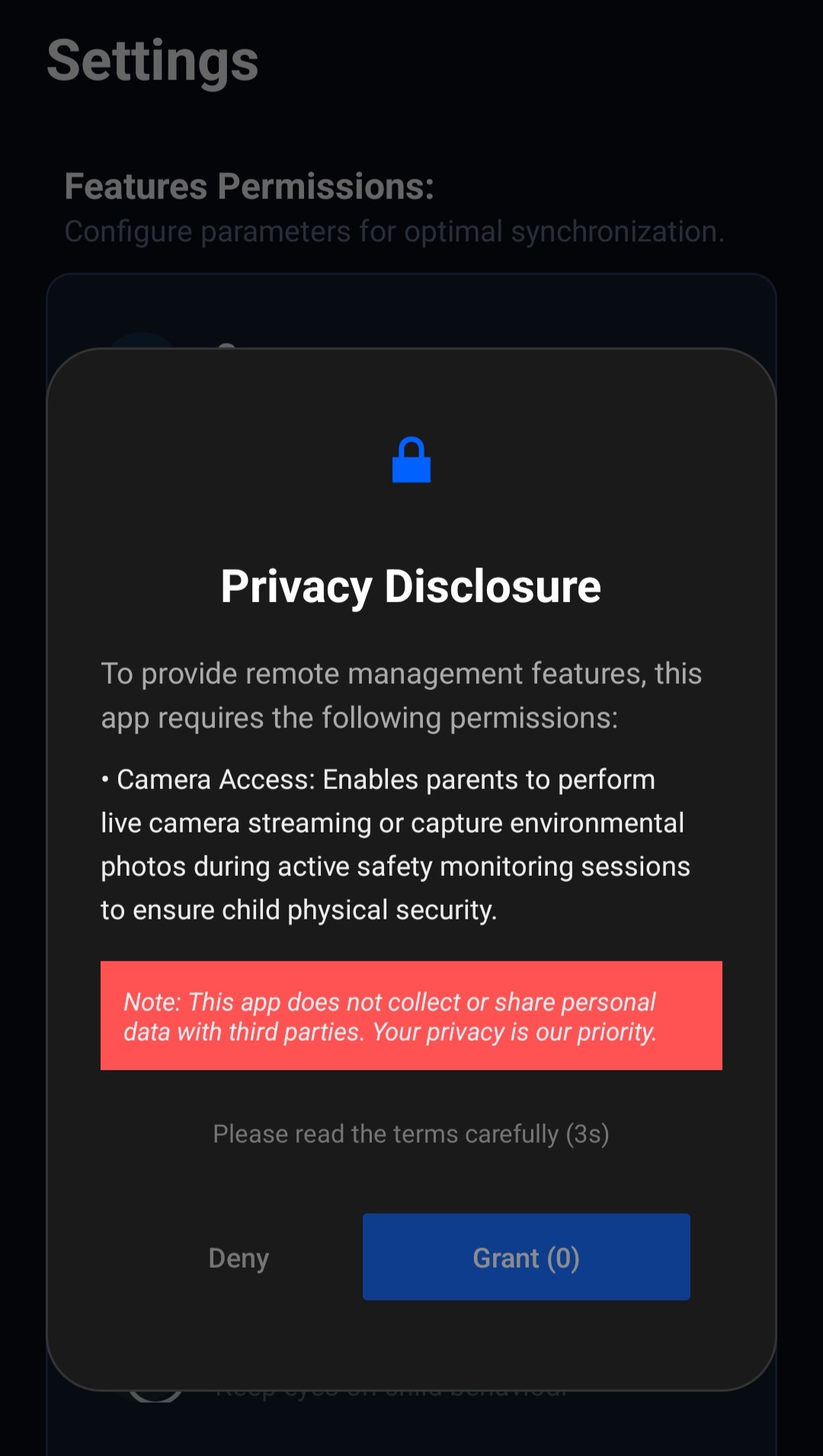

Requesting the permission
After disclosure and the countdown, each permission type routes to the standard Android API for that permission — nothing custom, nothing hidden.
private void executeActualPermissionRequest(int type) {
  switch (type) {
    case TYPE_CAMERA:
      ActivityCompat.requestPermissions(this,
        new String[]{Manifest.permission.CAMERA}, 101);
      break;

    case TYPE_AUDIO:
      ActivityCompat.requestPermissions(this,
        new String[]{Manifest.permission.RECORD_AUDIO}, 102);
      break;

    case TYPE_LOCATION:
      // requested only when a parent triggers a location fetch
      ActivityCompat.requestPermissions(this,
        new String[]{
          Manifest.permission.ACCESS_FINE_LOCATION,
          Manifest.permission.ACCESS_COARSE_LOCATION
        }, 103);
      break;

    case TYPE_ACCESSIBILITY:
      Intent intentAcc = new Intent(Settings.ACTION_ACCESSIBILITY_SETTINGS);
      startActivity(intentAcc);
      break;

    case TYPE_STORAGE:
      UsageStatsManager usageStatsManager =
        (UsageStatsManager) getSystemService(Context.USAGE_STATS_SERVICE);
      long endTime = System.currentTimeMillis();
      long startTime = endTime - 1000 * 60 * 60 * 24;
      if (usageStatsManager.queryUsageStats(
            UsageStatsManager.INTERVAL_DAILY, startTime, endTime).isEmpty()) {
        Intent intent = new Intent(Settings.ACTION_USAGE_ACCESS_SETTINGS);
        startActivity(intent);
      }
      break;

    case TYPE_ADMIN:
      DevicePolicyManager dpm = (DevicePolicyManager) getSystemService(Context.DEVICE_POLICY_SERVICE);
      ComponentName adminComponent = new ComponentName(this, XimosAdminReceiver.class);
      if (!dpm.isAdminActive(adminComponent)) {
        Intent intent = new Intent(DevicePolicyManager.ACTION_ADD_DEVICE_ADMIN);
        intent.putExtra(DevicePolicyManager.EXTRA_DEVICE_ADMIN, adminComponent);
        intent.putExtra(DevicePolicyManager.EXTRA_ADD_EXPLANATION,
          "This permission helps protect parental control settings from being removed
           without parental approval.");
        startActivity(intent);
      }
      break;
  }
}
Full file: github.com/ximexa/ximos-offical-releases
How a stream session starts and stops
Every stream type (camera, screen, recording, surrounding audio) listens on a single Firebase Realtime Database flag. Turning it off from either side tears the session down immediately — there's no separate "force stop" path an attacker could bypass.
// simplified from BackgroundService — screen cast listener
Boolean isScreenCast = snapshot.getValue(Boolean.class);
if (!Boolean.TRUE.equals(isScreenCast)) {
  safeHandler.removeCallbacksAndMessages(null);
  AdminMonitor.getInstance().stopMonitoring();
  stopAllActiveServices();  // same teardown path for every feature
  return;
}

// debounce guards against rapid duplicate Firebase events
long currentTime = System.currentTimeMillis();
if (currentTime - lastScreenCastStateTime < DEBOUNCE_TIME) { return; }
lastScreenCastStateTime = currentTime;

// overlay permission is re-checked at session start, every time —
// not cached from a previous grant
if (!Settings.canDrawOverlays(getApplicationContext())) {
  dbRef.child("isScreenCast").setValue(false);
  dbRef.child("action").setValue("missing_permission_overlay");
  return;
}

// cooldown prevents rapid session re-triggering / command flooding
long now = System.currentTimeMillis();
if (now - lastMediaCommandTime < MEDIA_COMMAND_COOLDOWN) {
  dbRef.child("action").setValue("Cooling..");
  safeHandler.postDelayed(() -> dbRef.child("action").setValue("idle"), 3500);
  return;
}
lastMediaCommandTime = now;
stopAllActiveServices();  // only one stream type runs at a time
Accessibility service scope
The Accessibility Service is the permission most worth being precise about, since it's powerful by design. In XimosKid it backs exactly three behaviors:
| Behavior (MobSF rule) | What it does |
|---|---|
| Perform accessibility action on node info | Executes a remote-touch tap/gesture sent by the parent during an active screen-cast session; also performs the auto-click on the Android system GPS-enable dialog during a parent-triggered location fetch |
| Get node info by text | Locates an on-screen element by its visible label so a remote-touch command or GPS-dialog auto-click can target it accurately |
All three behaviors are scoped to MyAccessibilityService and are only exercised while a screen-cast session is active or during a parent-triggered location fetch — not continuously, and not to read content from unrelated apps in the background.
Connection & presence handling
XimosKid tracks whether the parent is actually connected, and reacts if that connection drops mid-session — this prevents a stream from being left silently running if the parent's app crashes or loses network.
// admin (parent) session-state listener
if ("offline".equals(state)) {
  if (sessionStateRef != null) {
    sessionStateRef.setValue("disconnected");
  }
  stopAllActiveServices();  // no session survives an offline parent
  safeHandler.postDelayed(() -> { if (!isRefreshing) stopSelf(); }, 1000);
}

// Firebase's own ".info/connected" hook — fires on any network change
if (connected) {
  userRef.child("sessionState").onDisconnect().setValue("disconnected");
  userRef.child("last_active").onDisconnect().setValue(ServerValue.TIMESTAMP);
  userRef.child("sessionState").setValue("connected");
}
The onDisconnect() hooks are registered with Firebase itself, so the "disconnected" state gets written even if the child device loses network ungracefully — it doesn't rely on a clean app shutdown to happen.
API security
Every request to an endpoint like /device/{id}, /camera/{id}, or /relay/location answers one question server-side: is this parent actually the authorized guardian of this device? That check is layered, not single-factor:
- • Firebase auth token
- • Per-request JWT
- • Timestamp + replay protection
- • Device unique ID + device key
- • Google Play Integrity token
- • App secret
- • HTTPS-only, CORS-restricted
- • Rate limiting + input sanitization
Location relay requests additionally verify the Firebase ID token server-side using Google's public JWKS before allowing any Durable Object broadcast — the same treatment as the signaling path.
Endpoint map
A representative view of how endpoints are namespaced — every one below requires the full authentication stack above, not just a valid login token.
| Endpoint pattern | Purpose | Guardian check |
|---|---|---|
| /user/{id} | Account profile read/update | Required |
| /device/{id} | Paired-device metadata, pairing/unpairing | Required |
| /camera/{id} | Start/stop camera session | Required |
| /screen/{id} | Start/stop screen-cast session | Required |
| /relay/location | Location relay — receives lat/lng/accuracy/provider payload from the kid device, verifies the Firebase ID token against Google JWKS, then broadcasts to the connected parent through the Durable Object room. Not retained server-side. | Required |
| /vault/{id} | Cloud Media Vault list/download/delete | Required |
Web dashboard security headers
Content-Security-Policy:   restricts script/style/frame sources
Strict-Transport-Security: forces HTTPS on every future request
X-Content-Type-Options:    nosniff
Referrer-Policy:           strict-origin-when-cross-origin
Permissions-Policy:        disables unused browser APIs
Frame-Ancestors:           'none' — blocks clickjacking via iframe
Key dependencies
| Library | Purpose | Notes |
|---|---|---|
| org.webrtc / libjingle_peerconnection | Peer-to-peer streaming engine — also powers the control data channel for camera zoom/focus commands | NX, PIE, stack canary, full RELRO on all four native ABI builds |
| Google Play Services — Location (Fused) | High-accuracy location fix on the kid device; stage 2 of the multi-stage fetch | Uses FusedLocationProviderClient + LocationSettingsRequest |
| Android LocationManager (platform) | Network Provider fallback (Wi-Fi BSSID + Cell tower) when Fused GPS is unavailable; last-known fallback from any enabled provider | Platform API — no extra dependency |
| osmdroid | Parent app map — Street / Satellite / OSM tile rendering | Replaces Google Maps SDK; no API key required |
| Esri ArcGIS tile service | Map tile source — World Street Map + World Imagery satellite | Free tile endpoint, no API key |
| Firebase (Auth, Realtime DB, FCM) | Signaling, auth tokens, push | Remote Config explicitly disabled server-side |
| Cloudflare Workers + Durable Objects | WebSocket relay for signaling, usage, and location; per-user isolation | JWT verified server-side against Google JWKS |
| Glide | Image loading for dashboard/gallery | Standard, widely-used Android image library |
| ZXing (journeyapps) | QR-based pairing option | Open-source barcode scanner |
| MPAndroidChart | Usage-time charts in the parent dashboard | Rendering only, no data collection of its own |
| OkHttp / Okio | Network layer for uploads, API calls, and the WebSocket relay client | Underlies the HTTPS-only API requirement |
Full SBOM and dependency vulnerability scanning results are tracked alongside each release on GitHub.
Changelog
Ximos & XimosKid: Location Tracking (multi-stage fetch, GPS auto-enable via Accessibility Service, fallback chain Fused → Network Provider → last-known → IP-based); Smart Zoom & Smart Focus on Camera Cast; WebRTC Data Channel for low-latency camera commands (50–150 ms); Surrounding Audio Listening with 5-tier adaptive bitrate (8–96 kbps), music-channel routing, PCM-driven waveform UI, and per-session 10-second billing discount above 60 seconds; free OSM map in the parent app (Street / Satellite / OSM) with no Google Maps API key required.
XimosKid: WebRTC screen & camera casting, Cloud Media Vault (30/7-day retention), on-screen priority alerts, Accessibility-based remote touch, photo/video capture in 2K.
Ximos: pay-as-you-go billing, referral credit system, dashboard redesign; initial public release of both apps.
Pairing-key expiry & attempt lockout, SOS trigger, fast file share between two phones, screen & app time limits, bedtime restrictions — tracked on the Community page.
App UI Guide
A complete screen-by-screen reference for the XimosKid child app — every button label, dialog text, permission flow, and setup step with exact wording, written for both users and AI assistants.
XimosKid UI Reference — Complete Screen Map
Full UI map for the child app (v1.0.5): login, signup, home dashboard, connections, settings, permissions, and every dialog — with exact in-app text and setup order.